
How to Kill the Process on a Port (Mac, Linux, Windows)
You start a dev server and get EADDRINUSE: address already in use :::3000. Something is already listening on that port, and you need to find it and stop it. Here is the short version for each operating system, followed by the slower version that shows you what you're about to kill.
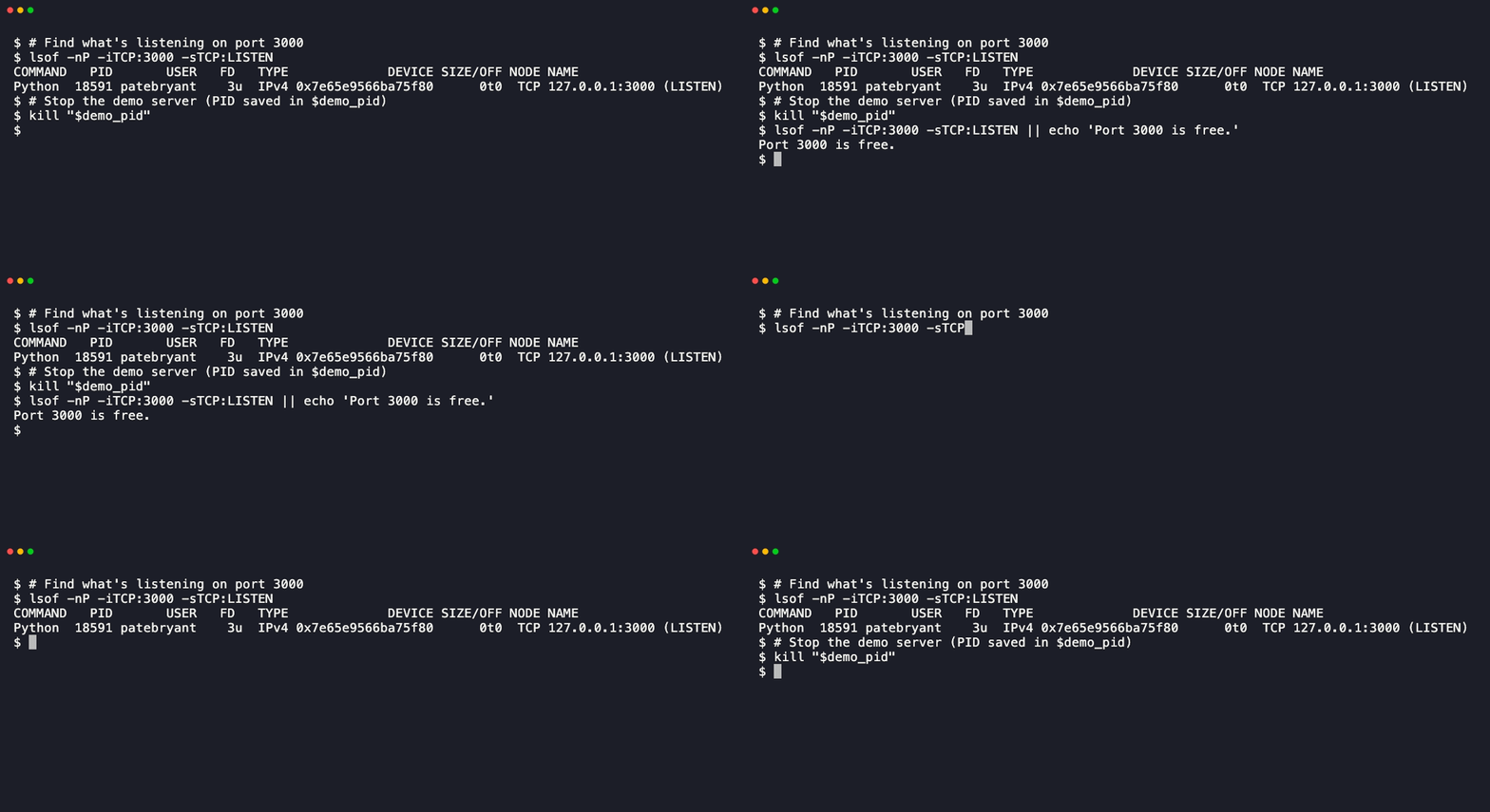
On macOS and Linux:
lsof -ti tcp:3000 -sTCP:LISTEN | xargs kill
On Windows, in PowerShell:
Stop-Process -Id (Get-NetTCPConnection -LocalPort 3000 -State Listen).OwningProcess
Replace 3000 with your port. Keep -sTCP:LISTEN: without it, tcp:3000 also matches every client connected to that port, including your browser, and kill would take the browser down too.
macOS
Find the process first, so you know what you're killing:
lsof -nP -iTCP:3000 -sTCP:LISTEN
-n and -P skip hostname and port-name lookups, which makes the command faster and shows numbers instead of names. -sTCP:LISTEN limits the result to the process that owns the port, not clients connected to it. On my machine, with a Python server running, the output looks like this:
COMMAND   PID       USER   FD   TYPE             DEVICE SIZE/OFF NODE NAME
Python  78674 patebryant    3u  IPv4 0xdd18d0bf508c002f      0t0  TCP 127.0.0.1:3000 (LISTEN)
The number you need is in the PID column. Pass it to kill:
kill 78674
Plain kill sends SIGTERM, which asks the process to exit and gives it the chance to close connections, flush writes, and clean up temporary files. If it ignores that and is still listed when you run lsof again, send SIGKILL, which the process can't catch:
kill -9 78674
If lsof prints nothing but the port is still in use, the process probably belongs to another user or to root. Run the same command with sudo.
Linux
The lsof commands from the macOS section work the same way on Linux. Some minimal distributions don't install lsof by default, though, so it helps to know two alternatives.
ss ships with iproute2 and is available almost everywhere:
ss -ltnp 'sport = :3000'
-l shows listening sockets, -t limits it to TCP, -n keeps port numbers numeric, and -p shows the owning process. The PID appears in the last column as users:(("node",pid=12345,fd=20)). Kill it with kill <PID> as before.
fuser finds and kills in one step:
fuser -k 3000/tcp
Be aware that fuser -k sends SIGKILL by default, not SIGTERM. If you want to give the process a chance to shut down cleanly, name the signal:
fuser -k -TERM 3000/tcp
As on macOS, processes owned by another user or by root won't show up, or won't die, without sudo. That applies to all three tools: ss -p silently leaves out the process column for sockets you don't own.
sudo ss -ltnp 'sport = :3000'
sudo fuser -k -TERM 3000/tcp
Windows
In Command Prompt, netstat lists connections along with the owning PID:
netstat -ano | findstr :3000
Look for the row in the LISTENING state. The PID is the last number on that line. findstr matches text, so :3000 will also match :30001; check the local address column. Then kill it:
taskkill /PID <PID> /F
/F forces termination. Without it, taskkill sends a close request to the process's window, and for console programs such as Node, which have none, it fails with an error telling you to use /F.
In PowerShell, you can get the PID directly without parsing text:
Get-NetTCPConnection -LocalPort 3000 -State Listen | Select-Object -ExpandProperty OwningProcess
Then stop it:
Stop-Process -Id <PID>
If the process was started from an elevated prompt, or as a service, run your terminal as Administrator.
One command on any OS
If you have Node.js installed, the kill-port package does the lookup and the kill for you on macOS, Linux, and Windows:
npx kill-port 3000
I didn't write it, and it's handy in package.json scripts where you want one command that works on every developer's machine. On macOS and Linux it calls lsof and sends SIGKILL, so it needs lsof installed and gives the process no chance to clean up. It doesn't show you what it's killing, so I use it in scripts and the manual commands when I'm curious about what is holding the port.
An interactive option
I got tired of running lsof, reading the PID, and typing it into kill, so I built ports-cli. I wrote it, so take the recommendation with that in mind. It's a terminal UI that lists every listening TCP port with the process that owns it. You can search, move with arrow keys or j/k, and press Enter to kill the selected process after a confirmation:
npx ports-cli
Under the hood it runs lsof -nP -iTCP -sTCP:LISTEN +c 0, so it works on macOS and Linux wherever lsof is installed. It doesn't support Windows. It's on npm.
Why EADDRINUSE keeps coming back
If you kill the process and the error returns a few minutes later, something is starting it again. These are the causes I run into most:
- An orphaned dev server. Closing a terminal tab doesn't always stop the process running in it, especially when it was started in the background or inside tmux. The server keeps the port until you kill it.
- A file watcher restarting the server. Tools such as nodemon, or a framework's own dev mode, restart the server when files change. If the old process hasn't released the port before the new one starts, you get the error even though only one server is meant to be running. Stop the watcher, not just the child process.
- Two projects with the same default port. Many frameworks default to 3000. A second project's dev server in another terminal is a common culprit.
- A Docker container publishing the port. If a container maps port 3000 to the host,
lsofshows a Docker process, such ascom.docker.backendon macOS ordocker-proxyon Linux, rather than your app. Killing it either takes Docker Desktop down or breaks the port mapping while the container keeps running. Find the container instead:
docker ps --format '{{.Names}} {{.Ports}}' | grep ':3000->'
Then stop that container with docker stop <name>.
When the error keeps coming back, run the lsof or ss command from above before killing anything. The COMMAND column usually tells you which of these it is.